
![[aggregator] downloaded image for imported item #103375](https://newsview.top/wp-content/uploads/2026/07/4-stop-your-smart-tv-from-listening-to-you-1-1024x576.jpg "Before you connect another smart TV, tablet or phone, lock it down")
This post was originally published on this site.
If your home Wi-Fi is like most, it is packed with connected devices.Smart TVs, phones, tablets, laptops, refrigerators, robot vacuums and security cameras may all be sharing the same network.
The problem is that most people connect a new device first and think about security later.Some never check the settings at all.That giveshackers, data brokers and nosy companies exactly the opening they want.
Before you connect your next smart TV, tablet or phone, take a few minutes to lock it down.
Free live CyberGuy class: Sick of Spam?Join us July 22
Join usWednesday, July 22, at 1 p.m.ETfor a free CyberGuy Live class that will help you cut down on robocalls, spam texts, junk email and other unwanted messages.Kurt “CyberGuy” Knutsson will walk you step by step through simple ways to filter spam, clean up your inbox and recognize the messages that could put your personal information at risk.No technical experience is needed.You’ll also receive our spam-stopping checklist, and every registrant will get a link to the class recording afterward.
Reserve your free spot today atCyberGuyLive.com.
FIVE DATA BROKER OPT-OUT MYTHS THAT LEAVE RETIREES EXPOSED
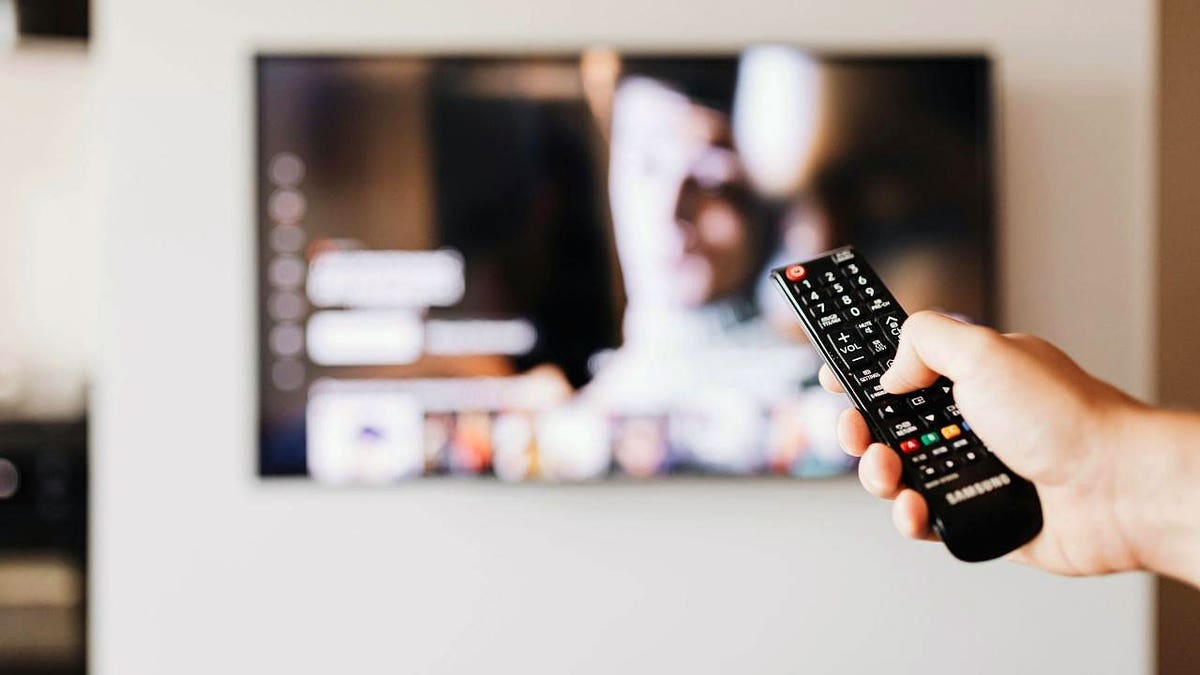
A new smart TV, phone or tablet can expose your Wi-Fi network if privacy and security settings are ignored during setup.(Kurt “CyberGuy” Knutsson)
Why devices aren’t safe enough right out of the box
When a new gadget arrives in your hands, it isn’t a blank slate.It comes loaded with factory settings designed for convenience instead of protection.Manufacturers want the unboxing experience to feel effortless, so they turn on features, like automatic connections, data sharing and remote access, that make setup easy but leave you exposed.
Smart TVs are some of the worst offenders.Many come with a feature calledAutomatic Content Recognition(ACR), switched on by default.It works like a fingerprint scanner for your screen, capturing information about everything you watch and sending it back to the manufacturer.You agreed to it somewhere in the terms and conditions you blitzed through when you set it up.Most people have no idea it’s even there.
Tablets and phones bring their own risks.Although many hardware manufacturers like to brag about privacy, lots of tablets and phones will share your location, accept connections from nearby devices, and back up your data to the company’s servers – all by default.
Plus, your home network is only as secure as its weakest device.One poorly configured smart TV or old tablet with an out-of-date OS can give attackers a foothold into everything else connected to the same router.
The 4 things to check before you connect
Before you connect any new smart TV, tablet or phone to your home network, take five minutes to check the settings manually.You do not need to be a tech expert.Focus on the areas that create the biggest openings.
Update the device and change default passwords
First, update the device and change any default passwords or PINs.A brand-new device may have been sitting in a warehouse for months, which means it could already need a security update.Default credentials are also easy for attackers to find online.
Review privacy settings and app permissions
Next, review privacy settings.On a smart TV, look for Automatic Content Recognition, or ACR, and turn it off.Depending on the brand, it may be listed under Viewing Data, Live Plus, SyncPlus, Smart TV Experience or privacy settings.On a phone or tablet, check location, camera, microphone and nearby device permissions.
Turn off features you do not use
Then, turn off connectivity features you do not use.Bluetooth, remote access, file sharing and screen mirroring can all create openings when they stay on all the time.
Add a VPN for another layer of privacy
Finally, consider adding a VPN for another layer of privacy.A VPN encryptsyour internet traffic, which helps protect what your smart TV, phone, tablet or laptop sends over the network.A trusted VPN has apps for many popular devices, and it can also run at the router level on compatible routers.
For the best VPN software, see my expert review of the best VPNs for browsing the web privately on your Windows, Mac, Android and iOS devices atCyberGuy.com.
The full checklist below walks you through each step.
New device security checklist
Next time you bring home a smart TV, tablet or phone, do this before you use it every day.
YOU COULD GET PAID FROM GOOGLE’S ANDROID DATA LAWSUIT
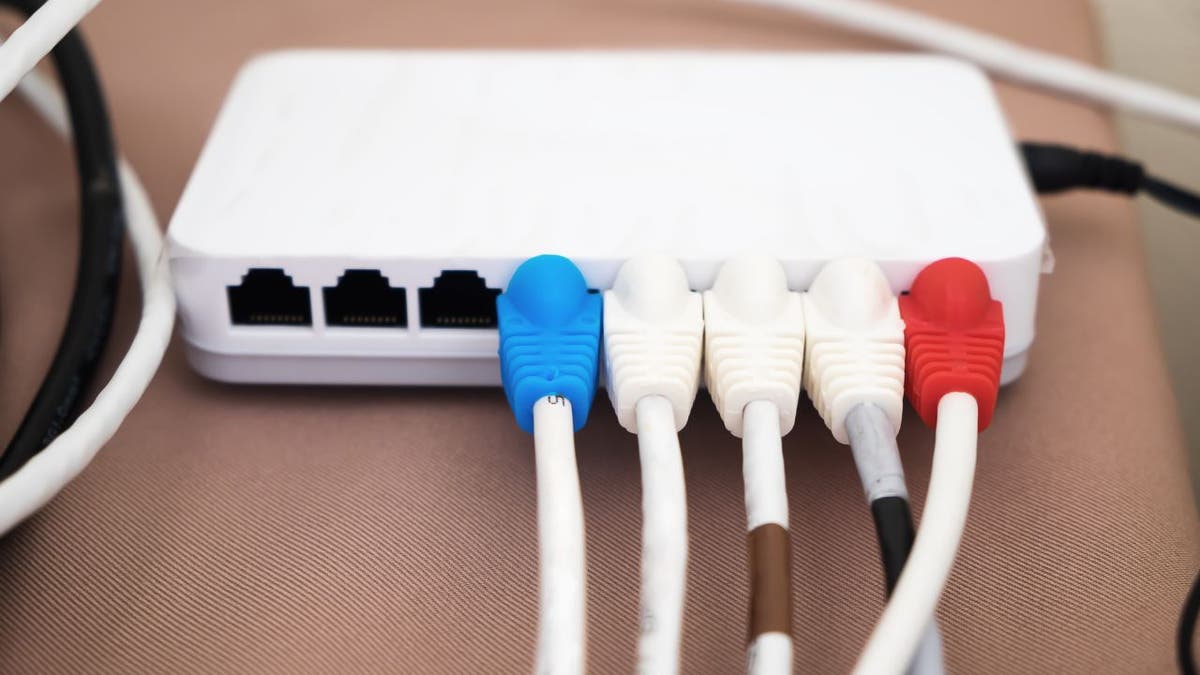
Before adding a new device to Wi-Fi, update software, change default passwords and review app permissions.(Kurt “CyberGuy” Knutsson)
1) Put smart devices on a guest Wi-Fi network first
Before you connect the device, open your router app or router settings page.Look forGuest Network,IoT NetworkorDevice Isolation.Create aseparate Wi-Fi namefor TVs, speakers, cameras and smart home gear.
UseWPA3 Personalif your router offers it.If not, useWPA2 Personal.Give this network astrong passwordyou do not use anywhere else.Then connect the new smart TV or tablet to that network instead of the same Wi-Fi your work laptop uses.
2) Update the software before signing in everywhere
Install updates before you add streaming apps, email accounts or payment info.
- iPhone or iPad:OpenSettings>General>Software Update>Download and Install.Then tapAutomatic Updatesand turn on iOS or iPadOS updates.
- Samsung phone or tablet:OpenSettings >Software update >Download and install.On some models, go toSettings >System updates.Settings may vary depending on your device’s manufacturer
- Other Android phone or tablet:OpenSettings>System >Software update>System update>Check for update.The exact wording can vary by brand.
- Samsung smart TV:Go toSettings>All Settings>Support>Software Update>Update Now.Turn onAuto Update,too.
- LG smart TV:Go toSettings>All Settings>Support>Software Update>Check for Updates.Turn onAuto Update,too.
- Roku TV or Roku device:PressHome>Settings>System>Software update>Check Now.
3) Change default passwords, PINs and device names
Do not leave factory passwords in place.Change the devicePIN, parental control PINor purchasePINif the setup screen offers one.Use apassword managerto create and store strong, unique passwords.Use a long passcode on phones and tablets instead of a 4-digit code.Also, rename the device.A name like “Kurt’s Bedroom TV” tells more than you need to share.Use something generic like “Living Room TV” or “Tablet 1.”
4) Turn on account protection before adding apps
Before you sign in to Apple, Google, Samsung, Amazon or Roku, turn on two-factor authentication where available.For Roku, set a PIN to help block unwanted purchases, subscriptions and app additions.
- Apple:OpenSettings>your name>Sign-In &Security>Two-Factor Authentication>follow theonscreen instructions.
- Google:Open yourGoogle Account>Security &sign-in>How you sign in to Google>2-Step Verification>Turn on2-Step Verification>follow theonscreen steps.
- Samsung:OpenSettings>yourSamsung account name>Security and privacy>Two-step verification>follow theprompts.
- Amazon:Open theAmazon app>account icon>Your Account>Login &security>Two-Step Verification>Get Started>follow theprompts.
- Roku:Go tomy.roku.com >sign in >Device settings >PIN/Parental controls >choose when a PIN is required for purchases, subscriptions and adding apps >Save.
5) Turn off ACR and ad tracking on smart TVs
Smart TVs often include Automatic Content Recognition, or ACR.It can identify what appears on your screen for ads, analytics or recommendations.Turn it off during setup or immediately after setup.
- Samsung TV:PressHome>Settings>All Settings >General &Privacy>Terms &PrivacyorPrivacy Choices.Turn offViewing Information Services.Also reviewInterest-Based Advertising andVoice Recognition Services.
- LG TV:PressSettings>All Settings>Support >Privacy &Terms.Look forLive Plus,Viewing Informationoradvertising optionsand turn off tracking you do not want.
- Roku TV:PressHome>Settings>Privacy>Smart TV Experience.UncheckUse info from TV inputs.Then go toAdvertisingand turn onLimit ad tracking.
- Amazon Fire TV:Go toSettings >Preferences >Privacy Settings.ReviewDevice Usage Data,Collect App Usage Data,Interest-Based AdsandAutomatic Content Recognitionif that option appears.
- Vizio TV:On newerVizio TVs, go toAll Settings >Privacy &Legal >Viewing Dataand turn it off.On older models, go toSystem >Reset &Admin >Viewing Data.Also review Interest-Based Advertising and Voice Recognition Services.
GOOGLE TURNS OLD PHONES INTO CLOUD SERVERS
A separate guest Wi-Fi network can help keep smart TVs and other connected devices away from personal laptops and phones.(Ute Grabowsky/Photothek via Getty Images))
6) Limit location, camera and microphone access
Phones and tablets often ask for more access than an app needs.Give each app the least access possible.
- iPhone or iPad:OpenSettings >Privacy &Security >Location Services.Tap each app and chooseNever,Ask Next TimeorWhile Using the App.Then reviewCamera,Microphone,Bluetooth,ContactsandPhotosin the samePrivacy &Securitymenu.
- Samsung Galaxy phone or tablet:OpenSettings >Security and privacy >Permission manager.ReviewLocation,Camera,Microphone,Contacts,Nearby devicesandPhotos and videos.Change apps toAsk every time,Allow only while using the apporDon’t allowwhen access isn’t needed.
7) Disable wireless features you do not use
Turn off Bluetooth when you do not need it.On phones, tablets and TVs, also look for Nearby Share, Quick Share, AirDrop, file sharing, screen mirroring and remote access.
- iPhone or iPad:Go toSettings>General>AirDrop.ChooseReceiving OfforContacts Only.
- Samsung Galaxy or Android phone:OpenSettingsand search forQuick Share.TapWho can share with you, then choose a more private option such asYour devicesorContactsinstead of making your phone visible to everyone.
- Smart TV:OpenSettingsand checkNetwork, ConnectionorExternal Device Manager.Turn off remote access, screen sharingormobile device connection featuresyou do not use.
8) Turn on lost-device protection
Set this up before the device goes missing.
- iPhone or iPad:OpenSettings >your name >Find My >Find My iPhoneorFind My iPad.Turn onFind My,Find My networkandSend Last Location.
- Samsung Galaxy phone or tablet:OpenSettings >Security and privacy >Lost device protection.Turn onAllow this phone to be found,Send last locationandOffline finding.
- Other Android phone or tablet:OpenSettings >Security >Find Huband make sureAllow device to be locatedis turned on.The wording may vary by brand.
For tablets used by kids or guests, write down the serial number.Keep it somewhere safe in case you need to report the device lost or stolen.
9) Remove apps you do not need
New devices often come with preinstalled apps.Delete or disable anything you will not use.Then installapps onlyfrom the official app store for that device.
On phones and tablets, avoid sideloading apps unless you know exactly where they came from.
On smart TVs, skip random free streaming apps with poor reviews, no clear developer or strange permission prompts.
10) Cover everything with a VPN
A VPN adds a layer of privacy by encrypting your internet traffic before it leaves your device.That can help limit what your internet provider can see and add protection when you use public Wi-Fi.
Look for a trusted VPN that offers apps for phones, tablets, computers and streaming devices.Some VPNs can also run at the router level on compatible routers.That option can be helpful because it may protect devices that do not support a VPN app, such as some smart TVs, game consoles and connected home gadgets.
Once a router VPN is set up, connected devices can receive VPN protection automatically.Just remember that a VPN does not make you invisible online.Websites may still recognize you when you log in, share personal details or use the same browser.Still, for everyday privacy, a reliable VPN can be a smart extra layer.
For the best VPN software, see my expert review of the best VPNs for browsing the web privately on your Windows, Mac, Android and iOS devices atCyberGuy.com.
Key takeaways
The default settings most devices ship with are designed for the manufacturer’s benefit, not yours.Before you connect your next smart TV, tablet, or phone, take a few minutes to go through the settings, lock down what doesn’t need to be open, and put a VPN between your network and the rest of the internet.
Have you ever found a privacy setting on a new device that surprised you?Let us know by writing to us atCyberGuy.com.
onelink.me/xLDS?pid=AppArticleLink&af_web_dp=https%3A%2F%2Fwww.
Sign up for my FREE CyberGuy Report
- Get my best tech tips, urgent security alerts and exclusive deals delivered straight to your inbox.
- For simple, real-world ways to spot scams early and stay protected, visitCyberGuy.com–trusted by millions who watch CyberGuy on TV daily.
- Plus, you’ll get instant access to my Ultimate Scam Survival Guide free when you join.
Copyright 2026 CyberGuy.com.All rights reserved.
![[aggregator] downloaded image for imported item #96213](https://newsview.top/wp-content/uploads/2026/06/cape-verde-fan-miami-world-cup-fox-news-001-1024x576.jpeg "World Cup ticket scams target desperate fans")
![[aggregator] downloaded image for imported item #96206](https://newsview.top/wp-content/uploads/2026/06/ohio-robot-cop-3-1024x576.jpeg "Ohio robot cop retires after zero arrests")
![[aggregator] downloaded image for imported item #94623](https://newsview.top/wp-content/uploads/2026/06/Waymo-Photo-1-1024x576.jpeg "Fox News AI Newsletter: Waymo's robotaxi recall")
![[aggregator] downloaded image for imported item #96587](https://newsview.top/wp-content/uploads/2026/06/3-wwdc-2025-apple-announces-ios-26-liquid-glass-design-and-more-but-the-ai-crisis-remains-mac-1024x576.jpg "Apple raises prices as AI chip costs surge")