
![[aggregator] downloaded image for imported item #50632](https://newsview.top/wp-content/uploads/2026/03/photos-hard-drive-1-1024x576.jpg "Transfer photos from your phone to a hard drive")
This post was originally published on this site.
If you own a smartphone, this moment eventually arrives.A warning pops up saying your storage is almost full.Photos stop syncing.Apps slow down.Suddenly, you are deleting emails, clearing messages and searching for anything that will free up space.
Many people hit this problem because their photos automatically back up to services likeGoogle Photos or iCloud.Those services include a limited amount of free storage.Once it fills up, the solution is usually the same.Pay for more space.
Janice from Alabama recently wrote to us about this exact situation.
YOUR IPHONE HAS A HIDDEN FOLDER EATING UP STORAGE SPACE WITHOUT YOU EVEN KNOWING
“My Google storage of 15 GB is almost used up, according to Google.I need to get my photos off my phone.How can I do this and keep access to them?I don’t want to delete them.I continually empty trash, delete emails, etc.I understand that this is a common problem with Google users on Android phones.Their answer is to purchase more storage space.I don’t appreciate being held hostage by Google.Any suggestions?”
Janice is far from alone.Millions of smartphone users face the same choice every year.Either pay monthly for more storage or move their photos somewhere else.The good news is that you can store your photos on a hard drive you own, keep access to them anytime andavoid ongoing subscription fees.Let’s walk through the easiest ways to do it.
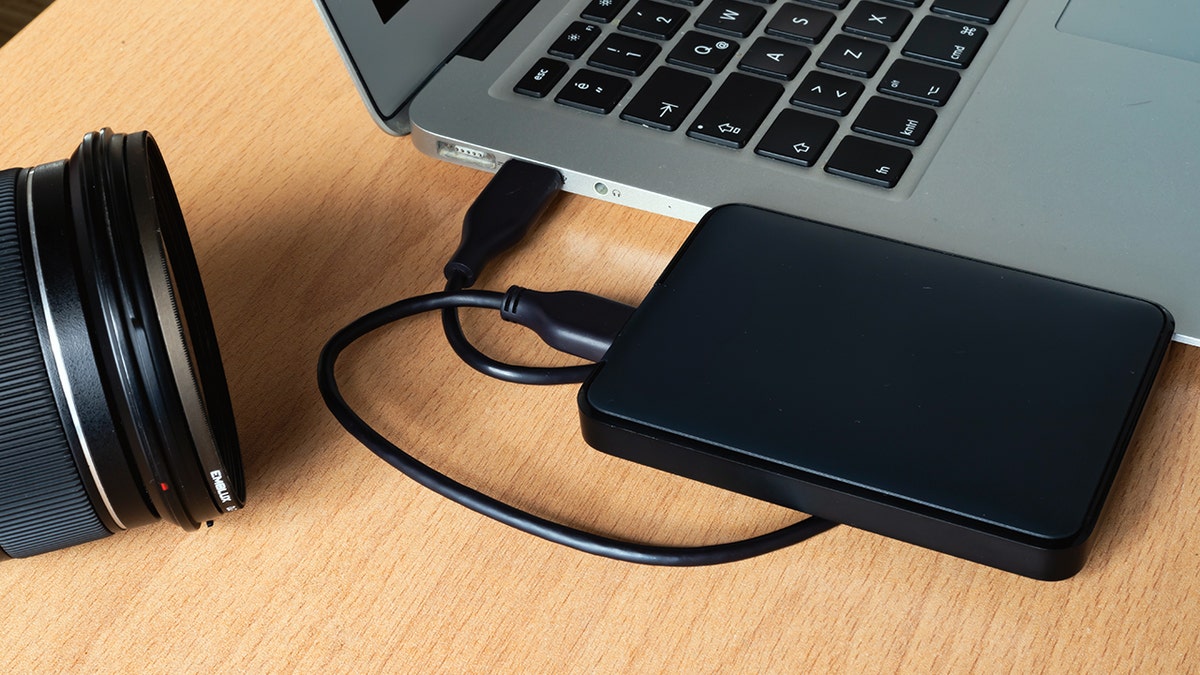
Smartphone users can free up storage by transferring photos to a computer and external hard drive instead of paying for more cloud space.(Yusuf Coskun via Getty Images)
Sign up for my FREE CyberGuy Report
Get my best tech tips, urgent security alerts and exclusive deals delivered straight to your inbox.Plus, you’ll get instant access to my Ultimate Scam Survival Guide — free when you join my CYBERGUY.COMnewsletter.
Method 1: Transfer photos from your phone to a computer
The simplest approach is to first copy your photos to a computer.After that, you can move them to anexternal hard drive.
For iPhones
Apple devices use a slightly different process.Instead of opening the phone like a storage device, you import photos through the Photos app on your computer.
On a Mac
- Connect your iPhone to your Mac using aUSB cable (Lightning or USB-C, depending on your iPhone model)
- Unlock youriPhoneif it is locked
- If prompted, tapTrust This Computeron your iPhone
- Open thePhotos appon your Mac
- Select your iPhone underDevicesin the sidebar
- Choose thephotos or videosyou want to transfer
- ClickImport SelectedorImport All New Items
The photos will download to your Mac’s photo library.
Another option: Use iCloud Photos
If you are signed into iCloud andiCloud Photosisenabled on your iPhone, your photos may already be syncing automatically.In that case, you can simply openPhotos on your Macor visitiCloud Photos in a browseron your desktop to access and download them without connecting your phone.
HOW TO HIDE PHOTOS ON YOUR IPHONE AND ANDROID FROM SNOOPS
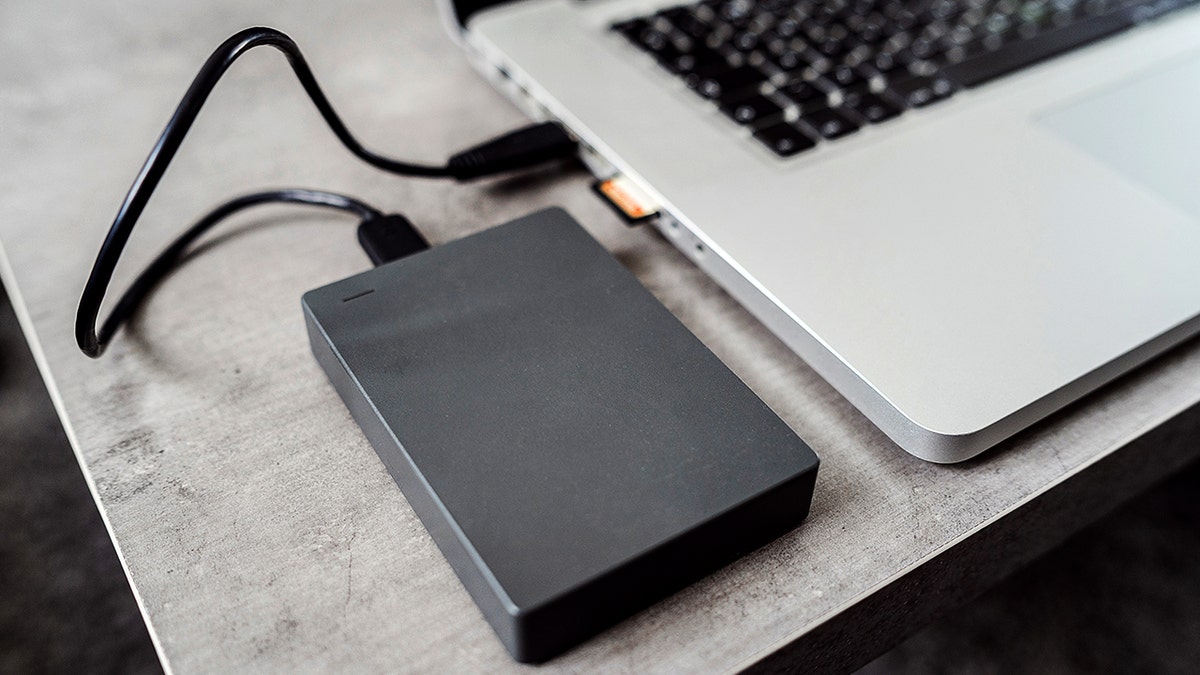
With a USB cable and a hard drive, users can protect thousands of photos while reclaiming valuable phone storage.(Jun via Getty Images)
For Android phones
Settings may vary depending on yourAndroid phone’s manufacturer
- Connect yourphoneto your computer using aUSB cable
- On yourphone, chooseFile Transferwhen prompted
- OpenFile Exploreron Windows orFinderon Mac
- Locate yourphoneunderconnected devices
- Open theDCIMorPicturesfolder
- Copy thephotosyou want to save
Once copied, paste the files into a folder on your computer.This step gives you a full backup before moving them to a drive.
On Windows
- Connect youriPhonewith aUSB cable
- Unlock your phone and tapTrust This Computer
- Open thePhotosapp on Windows
- ChooseImport from a USB device
Windows will copy your photosdirectly to your computer.
Method 2: Move the photos to an external hard drive
Once your photos are on your computer, transferring them to a hard drive is quick.
- Plug yourexternal hard drive into yourcomputer
- Open the drive inFinderorFile Explorer
- Drag yourphoto folderonto the drive
- Wait for thefiles to finish copying
Now your photos are stored safely on a device you control.External drives can hold tens of thousands of photos, depending on the size of the drive.Check out our best external drives article atCyberguy.com.
BEST WAYS TO SAVE YOUR PHONE’S PHOTOS BEFORE IT’S TOO LATE
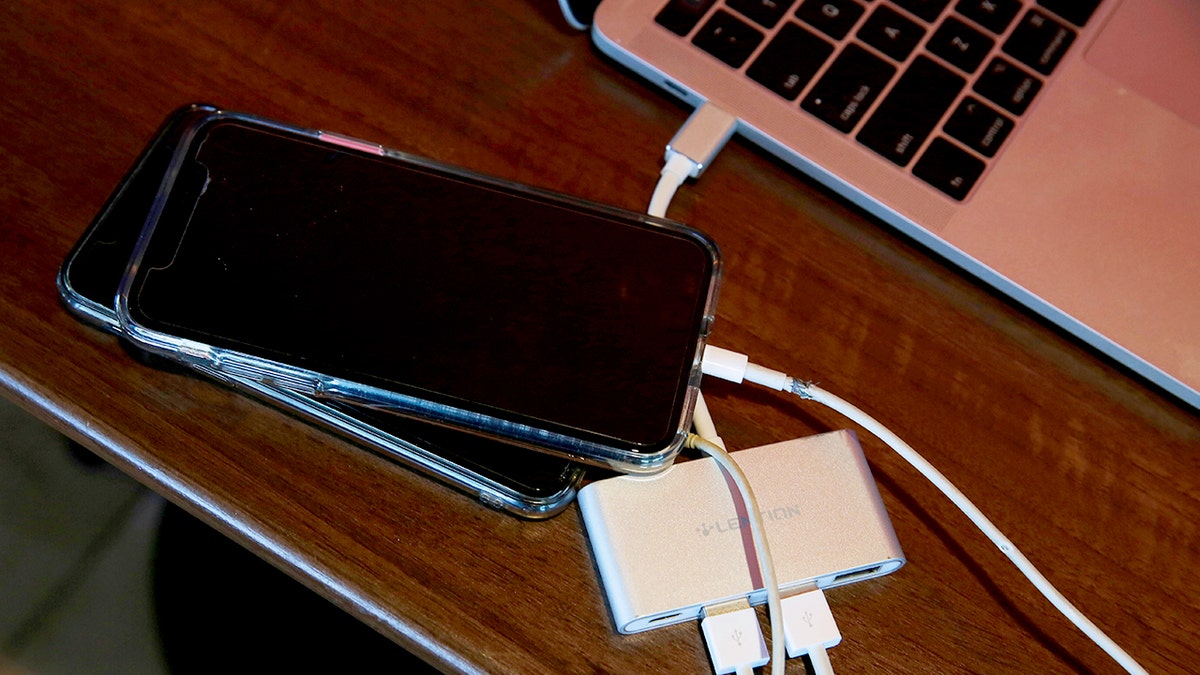
Moving photos from an iPhone or Android device to a hard drive helps preserve memories without ongoing subscription fees.(Lea Suzuki/The San Francisco Chronicle via Getty Images)
Method 3: Transfer photos directly to a USB flash drive
If you prefer skipping the computer, some flash drives plug directly into smartphones.These drives typically include:
- USB-C connectorsfor Android phones
- Lightning connectorsfor older iPhones
- USB-C connectorsfor iPhone 15 and newer models
After connecting the drive, open the companion app that comes with it.From there, you can move photos directly from your phone to the drive.This option works well when you need to free up space quickly.Be sure to explore our best flash drive recommendations atCyberguy.com.
Method 4: Keep your photos organized
After transferring photos to a hard drive, spend a few minutes organizing them.
Create folders by:
- Year
- Event
- Vacation
Hard drives are reliable, but keeping a second backup ensures your memories stay protected if one drive ever fails.
Why this approach saves money
Cloud storage can feel inexpensive at first.Over time, the monthly charges add up.An external hard drive often costs less than a year or two of cloud storage fees.After that, the storage is essentially free.Even better, your photos stay under your control rather than sitting only on a company server.
Take my quiz: How safe is your online security?
Think your devices and data are truly protected?Take this quick quiz to see where your digital habits stand.From passwords to Wi-Fi settings, you’ll get a personalized breakdown of what you’re doing right and what needs improvement.Take my Quiz here:Cyberguy.com.
Kurt’s key takeaways
Janice asked a question many people quietly wonder about.Do we really need to keep paying companies just to store our own memories?Fortunately, the answer is no.With a simple cable and an affordable hard drive, you canfree up phone storage, keep every photo you want and avoid ongoing storage fees.Once you try it, the process becomes fast and routine.
So, here is something worth thinking about.If your phone holds years of photos and videos, should those memories live only on a company’s cloud server or somewhere you fully control?Let us know by writing to us at Cyberguy.com.
onelink.me/xLDS?pid=AppArticleLink&af_web_dp=https%3A%2F%2Fwww.
Sign up for my FREE CyberGuy Report
Get my best tech tips, urgent security alerts and exclusive deals delivered straight to your inbox.Plus, you’ll get instant access to my Ultimate Scam Survival Guide — free when you join myCYBERGUY.COMnewsletter.
Copyright 2026 CyberGuy.com. All rights reserved.
![[aggregator] downloaded image for imported item #20610](https://newsview.top/wp-content/uploads/2026/01/hackers-photo-1-1024x576.jpg "Browser extension malware infected 8.8M users in DarkSpectre attack")
![[aggregator] downloaded image for imported item #20603](https://newsview.top/wp-content/uploads/2026/01/senior-hands-holding-smartphone-fox-news-001-1024x576.jpg "Don’t lock your family out: A digital legacy guide")
![[aggregator] downloaded image for imported item #21213](https://newsview.top/wp-content/uploads/2026/01/plastic-bottle-energy-1024x576.jpg "Plastic bottles could power your devices one day")