
![[aggregator] downloaded image for imported item #20244](https://newsview.top/wp-content/uploads/2026/01/iphone-usage-photo-1-1024x576.jpg "How to send free digital invitations on iPhone")
This post was originally published on this site.
Creating invitations should feel easy, not stressful.Apple’s Invites appmakes it simple to create free digital invitations with built-in RSVP tools, even if your guests do not use iPhones.
You can design the invite, track responses, and share photos after the event, all from your iPhone.Below is a clear step-by-step guide with exact instructions so you can get it right the first time.
Oh, and if you want more options beyond Apple’s Invites app, we also cover thebest invitation appsfor both iPhone and Android.
Sign up for my FREE CyberGuy Report
Get my best tech tips, urgent security alerts and exclusive deals delivered straight to your inbox.Plus, you’ll get instant access to my Ultimate Scam Survival Guide – free when you join my CYBERGUY.COMnewsletter.
HOW TO SHARE YOUR ESTIMATED ARRIVAL TIME ON IPHONE AND ANDROID

Apple’s Invites app lets users create free digital invitations with built-in RSVP tools directly from an iPhone, making event planning faster and easier.(Katharina Kausche/picture alliance via Getty Images)
Why Apple Invites makes event planning easier
Apple Invites keeps everything in one place.You design the invite, manage RSVPs and share memories without switching apps.You can:
- Create invitations for parties, meetings and family events
- Let guests RSVP from any device
- Share photos, playlists and links after the event
Apple Invites system requirements
Before you start, confirm these basics.You need:
- An iPhonerunning iOS 18 or newer
- An iCloud+ subscription to create invitations
Guests can view and RSVP without an iCloud+ subscription.The steps in this article were tested on an iPhone 15 Pro Max running iOS 26.2.
Download Apple Invites from the App Store
First, install the Apple Invites app.
- Open the App Store.
- Search forApple Invites.
- Download the app namedApple Invitesto avoid confusion.
Open the Invites appafter installation.
How to create a free digital invitation with RSVP on iPhone
You are now ready to build your invitation.
Start a new invitation in Apple Invites
- Open theInvites app.
- If this is your first time, tap Create Invitation.
If you have created invites before, tap the plus iconin the top corner.
Add a background image to your invitation
- Tap Add Background.
- Choose one option:PhotosCameraPlayground using Apple Intelligenceon supported modelsYou can also select Emoji, Photographicor Color backgrounds.
- Photos
- Camera
- Playground using Apple Intelligenceon supported models
- You can also select Emoji, Photographicor Color backgrounds.
Grant photo or camera access if prompted.
Add event details like title, date and location
Next, fill in the key information.
- Tap Event Titleand enter the name of your event.Choose from four available fonts.
- Choose from four available fonts.
- Tap Date and Time.Select a start and end time or mark the event as all day.
- Select a start and end time or mark the event as all day.
- Tap Location.Enable Location Services if prompted.
- Enable Location Services if prompted.
- Tap Add a Descriptionto include event details or notes.
If you add both a date and a location, the app automatically shows:
- The weather forecast for that day
- A Maps link with directions
Add optional features like photos, links and playlists
You can add several optional features to enhance your invitation.
- Add a shared photo albumso guests can view and upload photos by tapping Create Album
- Add a website link, such as a gift registry, by tapping Add a Link
- Add a shared Apple Music playlistguests can listen to and add songs to by tapping Add Playlist
Add a Tileto bundle photos, playlists or links in one place by tapping Add Tile
Preview and create your invitation
Before sending, review everything.
- Tap Preview.
- Review how the invitation will look to guests.
- Tap Nextin the upper-right corner.
- Wait a few seconds while the invite is created.
NEVER LOSE YOUR CAR WITH MAPS PARKING TOOLS
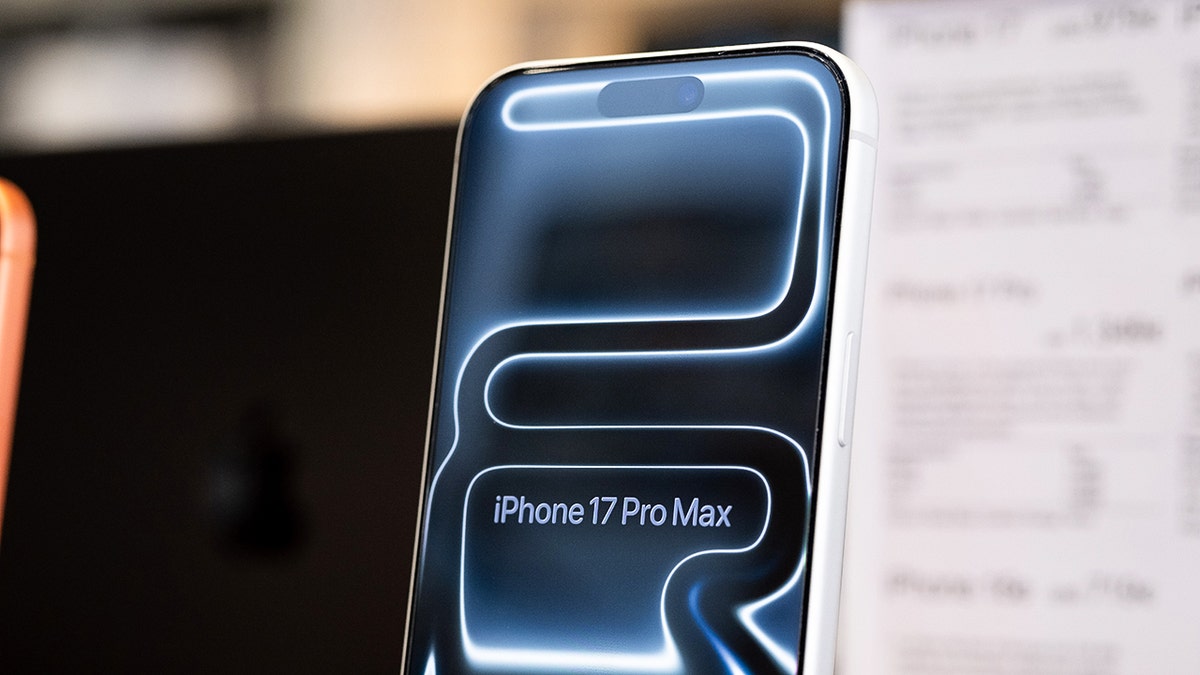
Apple Invites allows hosts to design invites, track guest responses and share photos without requiring guests to own an iPhone.(Nikolas Kokovlis/NurPhoto via Getty Images)
How to send invitations and manage RSVPs on iPhone
Once your invitation is live, you can share it in two different ways.
Invite guests using a public link
- Under Invite with Public Link, choose how you want to share the link:MessagesMailShare LinkCopy Link
- Messages
- Share Link
- Copy Link
- Toggle Approve Guestson if you want to review RSVPs before guests are added.
- Leave Approve Guestsoff to allow anyonewith the linkto RSVP automatically.
Guests who accept the invite will appear in your guest list.
Invite guests individually
- Scroll to Invite Individuals.
- Tap Choose a Guest.
- Then you’ll be prompted to access your contacts and click Continue.
- Click Select Contacts
- Select only the contactsyou want to include for this invitation and click Continue
- Tap Allow Selected Contacts
- Select acontactto send a one-time invite link.
- Then click Messages, MailorShare Link
This option sends a unique link to a single guest.
Guests can RSVP even if they do not own an iPhone.
How to send invitations and manage RSVPs on iPhone
Once your invitation is live, you can share it in two different ways.
Invite guests using a public link
- Under Invite with Public Link, choose how you want to share the link:MessagesMailShare LinkCopy Link
- Messages
- Share Link
- Copy Link
- Toggle Approve Guestson if you want to review RSVPs before guests are added.
- Leave Approve Guestsoff to allow anyone with the link to RSVP automatically.
Guests who accept the invite will appear in your guest list.
Invite guests individually
- Scroll to Invite Individuals.
- Tap Choose a Guest.
- Then you’ll be prompted to access your contacts and click Continue.
- Click Select Contacts
- Select only the contactsyou want to include for this invitation and click Continue
- Tap Allow Selected Contacts
- Select acontactto send a one-time invite link.
- Then click Messages, MailorShare Link
This option sends a unique link to a single guest.
Guests can RSVP even if they do not own an iPhone.
Manage event settings and RSVP notifications
You stay in control after sending.
- Tap the Settings iconinside the invite.
- Adjustguest permissionsand RSVP options.
- Enable notificationsto receive alerts when guests respond.
- Set plus one limitsorblock additional guestsif needed.
Your invitation appears on the app home screen under Upcoming.
Edit an invite after sending it
Plans change, and edits are allowed.
- Open theinvitefrom the Upcoming list.
- Tap the More Button(three horizontal dotsin the upper-right corner)
- Click Edit to update details.
- Changessync automaticallyfor guests.
5 BEST APPS TO USE ON CHATGPT RIGHT NOW

With Apple Invites, users can manage event details, RSVPs and shared content all in one place using iOS 18 or newer.(Nikolas Kokovlis/NurPhoto via Getty Images)
Pro tip: duplicate invitations for recurring events
If you host a recurring event, such as a book club, save time.
- Open an existing invitation.
- Tap the Morebutton.(three horizontal dotsin the upper-right corner)
- Select Duplicate.
- Adjust the date, timeor detailsas needed.
Take my quiz: How safe is your online security?
Think your devices and data are truly protected?Take this quick quiz to see where your digital habits stand.From passwords to Wi-Fi settings, you’ll get a personalized breakdown of what you’re doing right and what needs improvement.Take my Quiz here: Cyberguy.com.
onelink.me/xLDS?pid=AppArticleLink&af_web_dp=https%3A%2F%2Fwww.
Kurt’s key takeaways
Apple Invites makes event planning feel simple again.You can create freedigital invitations,send them in seconds and track RSVPs without chasing people down.Everything lives in one place, from guest lists to shared photos, which saves time and reduces stress.Best of all, guests do not need an iPhone to respond.That makes Apple Invites practical for real life, not just Apple users.Whether you are planning a birthday, a family dinner, or a casual meetup, this app helps you focus on the event rather than the logistics.
Would you consider replacing paper invites or group texts with Apple Invites, or are you still planning events the old way?Let us know by writing to us at Cyberguy.com.
Sign up for my FREE CyberGuy Report
Get my best tech tips, urgent security alerts and exclusive deals delivered straight to your inbox.Plus, you’ll get instant access to my Ultimate Scam Survival Guide – free when you join my CYBERGUY.COMnewsletter.
Copyright 2025 CyberGuy.com. All rights reserved.
![[aggregator] downloaded image for imported item #17032](https://newsview.top/wp-content/uploads/2025/12/chatgpt-photo-1-1024x576.jpg "5 Best apps to use on ChatGPT right now")
![[aggregator] downloaded image for imported item #17025](https://newsview.top/wp-content/uploads/2025/12/hacker-photo-1-1024x576.jpg "Pornhub hit by massive user data leak exposing 200 million records")
![[aggregator] downloaded image for imported item #17151](https://newsview.top/wp-content/uploads/2025/12/return-fraud-photo-1-1024x576.jpg "AI takes on return fraud as holiday returns surge")
![[aggregator] downloaded image for imported item #17439](https://newsview.top/wp-content/uploads/2025/12/data-breach-photo-1-1024x576.jpg "700Credit data breach exposes SSNs of 5.8M consumers")